Running a Gimkit game for the first time can feel confusing, but it’s actually simple once you know the flow. Whether you’re a teacher, tutor, or corporate trainer, this guide walks you through every step of becoming a confident Gimkit host.
From setting up your Gimkit account to picking the right game mode, we’ll cover the tools, tips, and tricks that make hosting a live game smooth. By the end, you’ll be ready to launch your own Gimkit session without any guesswork.
What Is a Gimkit Host?
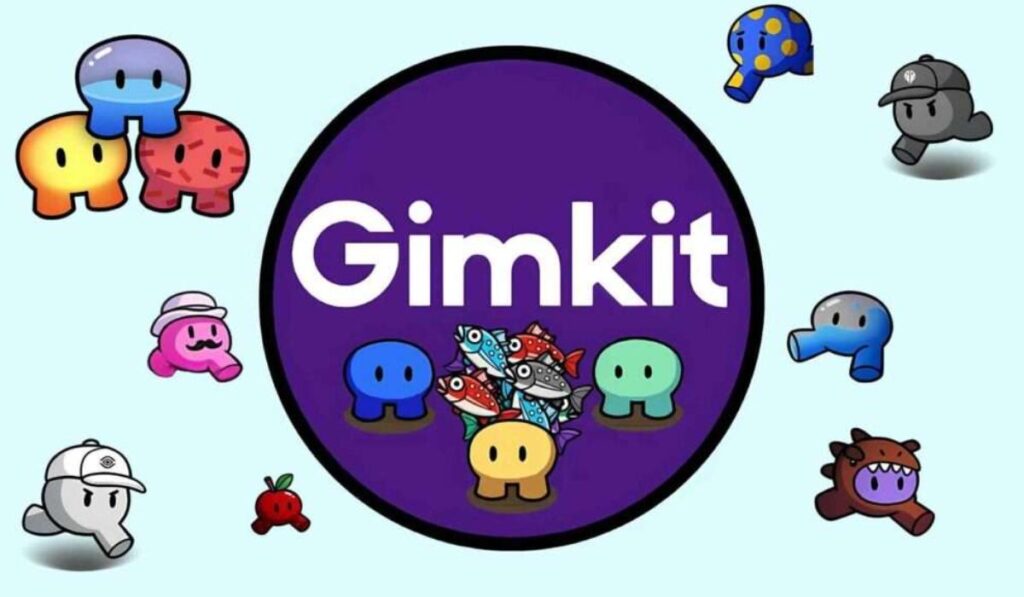
A Gimkit host is the person who runs the live session, controls the lobby, and manages the dashboard while players answer questions. Hosts can be a teacher, coach, or parent guiding a classroom or home review activity.
The host picks the kit, starts the join code, and watches the live leaderboard update in real time. It’s a simple role, but it gives you full control over pacing, game settings, and how the whole group experiences learning.
How to Create Your Gimkit Account
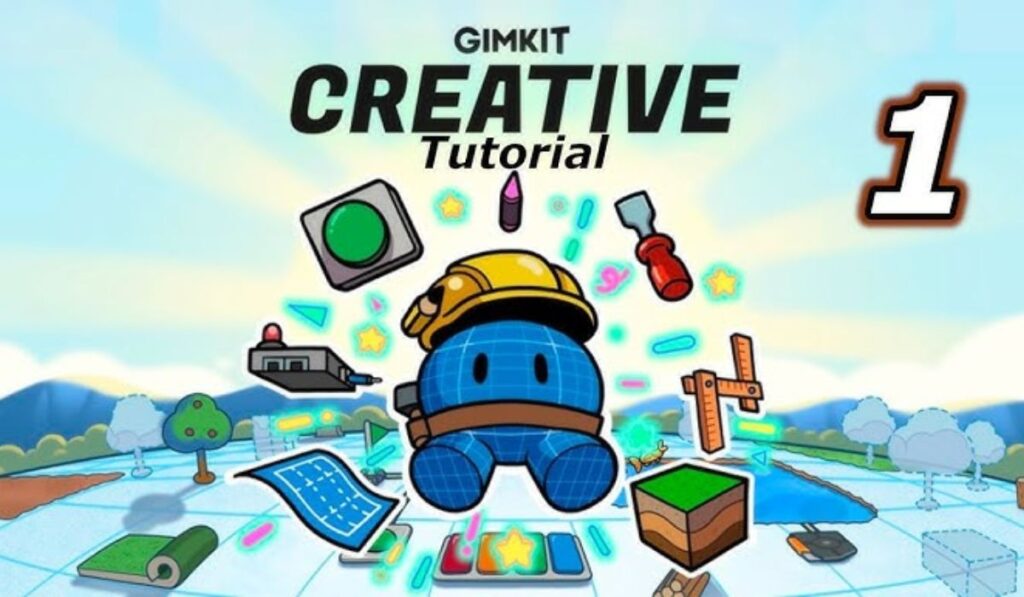
Setting up an Educator account or Student account takes just a few minutes. Head to the sign-up page and choose Google sign-in, Microsoft sign-in, or standard email login with email verification to get started quickly.
Once signed in, you’ll land on your Gimkit dashboard, where kits and reports live. New users often get a free trial of Gimkit Pro, letting you test premium features before deciding between the free plan and a paid Pro subscription.
Read our trending articles to stay updated with the latest online trends and guides.
Our blog covers more than just Gimkit; we regularly publish guides on educational technology (EdTech), classroom tools, and gamified learning trends. These articles help teachers and trainers stay sharp in a fast-moving digital learning world.
Check our categories section for topics ranging from student engagement strategies to review-game comparisons. Written by Jack Dsouza on MeaningSparkz, these posts pair nicely with this hosting guide for a fuller picture of modern classroom tech.
Starting Ahead: Your First Hosting Mission
Before your first live session, spend a few minutes exploring the onboarding tour Gimkit offers new hosts. It highlights the start button, game settings, and where to find your question bank for quick setup.
Try a solo test or preview game first so you understand the flow without players watching. This small step builds confidence and helps you catch typo check issues in your question set before the real classroom session begins.
Gimkit host without login
Some hosts want to skip full registration, and Gimkit does allow limited guest access for quick sessions. However, full hosting features like saved kits, game reports, and progress tracking require a proper Gimkit account.
For a one-time review session or trivia night, guest hosting might work fine. But if you’re a teacher running repeated classroom activities, creating a real account unlocks the question library, class roster, and long-term analytics tools worth having.
How to Build a Kit (Your Question Set)
Your kit is the heart of every Gimkit game, and the kit builder makes creating one straightforward. Add multiple-choice questions, true or false, or short answer items manually, or pull from educator-created questions already shared online.
Prefer importing? Use CSV import, spreadsheet import, or a Quizlet import to turn existing flashcards into a ready-made question set. You can also adjust question order and question count before saving your kit for future vocabulary review or knowledge testing sessions.
How to Host a Live Gimkit Game (Step by Step)
Hosting starts with opening your kit, hitting Play Live, and choosing a game mode that fits your classroom goals. Gimkit then generates a join code and QR code for players to enter the lobby.
Once everyone’s in, it continues to launch the live session. Watch the live dashboard for accuracy tracking, score updates, and overall response rate. As host, you can pause games, freeze players, or remove players anytime to keep things running smoothly.
Choosing the Right Game Mode
Gimkit offers several game modes, each changing how players compete and earn in-game currency. Some modes emphasize team mode collaboration, while others reward speed and individual accuracy through experience points (XP) and cosmetic unlocks.
Picking the right mode depends on your group’s energy and your teaching goal. A calm review session suits simpler formats, while energetic groups enjoy animated map based modes with character skins, trails, and stickers as rewards for correct answers.
Classic Mode
Classic Mode is the original Gimkit format, focused purely on answering questions correctly to earn cash. It’s simple, distraction-free, and perfect for quick vocabulary review or straightforward knowledge testing without extra gameplay layers.
Fishtopia
Fishtopia combines correct answers with a fishing mini-game, letting players use bait and earn rewards. It’s playful and visual, making it a favorite for younger students who enjoy animated map style engagement.
Tag Domination
Tag Domination turns learning into territory capture, where teams compete to control zones by answering correctly. It’s energetic and competitive, ideal for classroom groups that thrive on team learning and friendly rivalry.
Snowbrawl
Snowbrawl adds a wintery twist with snowballs, energy, and strategic attacks tied to correct answers. It’s a high-energy team mode that keeps students engaged while reinforcing content through fast-paced, competitive rounds.
Kits Gimkit
Beyond building your own, Gimkit’s KitCollab feature lets classes contribute questions together through a shared link. This collaborative question writing tool saves time and encourages peer support during kit creation for busy teachers.
You can also duplicate kit entries, organize them by folder organization, and reuse shared kits across different classes. This flexibility makes managing multiple question sets for various subjects far less overwhelming over a full term.
2D Game Modes
2D Game Modes include platformer modes with animated map visuals where players move characters while answering. These modes blend movement and quizzing, giving a more immersive feel than static, screen-only formats.
Pro Exclusive Modes
Certain modes and multipliers are locked behind Gimkit Pro, offering advanced customization like streak bonuses and extra upgrades. Upgrading unlocks these exclusive formats for hosts wanting deeper engagement and richer cosmetic unlocks for players.
Managing the Game as a Host
Once the live game begins, your host dashboard becomes command central. You can adjust team size, set a time limit, toggle power-ups, or change shop rules mid-session depending on how the group responds.
If a participant struggles or misbehaves, use pause game, freeze player, or remove player controls instantly. Keeping an eye on the live leaderboard also helps you spot weak questions or classroom interruption moments needing quick attention.
Reviewing Results After the Game
After the live session ends, Gimkit generates detailed game reports covering individual scores and overall accuracy. These insights help identify weakest questions, track response rate, and understand where students need more support.
You can export data as a PDF export for record-keeping or share with a co-teacher for collaborative performance analysis. This analytics layer turns a fun live game into a genuinely useful formative assessment tool for learning outcomes.
Free Plan vs. Gimkit Pro
| Feature | Free Plan | Gimkit Pro |
| Basic kits | Yes | Yes |
| Advanced game modes | Limited | Full access |
| Reports & analytics | Basic | Detailed |
| Homework mode | Limited | Full |
| Import tools | Basic | Advanced |
Choosing between Gimkit Basic and Pro subscription depends on how often you host. Casual review games work fine on free plan, while regular classroom use benefits from Pro’s deeper analytics and expanded game settings control.
Expand Your Gimkit Hosting Toolkit
Beyond the core platform, hosts can pair Gimkit with tools like Google Classroom or Microsoft Teams for smoother distribution. Sharing join codes through these platforms speeds up guest join access for larger groups.
Consider building a personal question library over time, saved as CSV files for backup. This growing resource becomes invaluable for future assessment planning, letting you reuse strong question sets across semesters without rebuilding from scratch.
Best Tips for Gimkit Hosting
- Preview every kit before the live session starts
- Keep question count balanced for attention span
- Use QR code access for faster lobby entry
- Monitor the live dashboard throughout the round
Small habits make a big difference in hosting quality. Testing your internet browser compatibility beforehand, checking device compatibility across Chromebook, laptop, and tablet, and confirming join page access all prevent frustrating last-minute technical delays.
Gimkit join
Joining is refreshingly simple for players: visit the Gimkit Join page, enter the join code, and pick a display name. No account is required for basic guest join participation in most live session formats.
This works across desktop, mobile phone, or tablet devices with any modern internet browser. The join lobby shows who’s connected before the host hits start, making entry smooth even for younger students unfamiliar with the platform.
Read It: TravelTweaks Flight Discount Codes 2026: Save Money on Every Flight Booking
Tips to Make Your Gimkit Sessions Better
Great hosting goes beyond just clicking start; small adjustments improve engagement and student engagement dramatically. These practical tweaks, covered below, help turn an average review activity into a genuinely memorable classroom experience.
Testing different combinations across sessions reveals what resonates with your specific group. Track results using game reports so decisions about question timer length, team size, and game mode rotation reflect actual data.
Mix Question Types
Combine multiple-choice questions, true or false, and short answer formats within one kit. This variety keeps players alert and tests different thinking skills rather than repetitive, predictable question patterns throughout the session.
Keep Games Short
Shorter live sessions hold attention better, especially for younger students or quick review session activities. A tight time limit prevents fatigue and keeps energy high from the lobby through the final leaderboard results.
Use Data Frequently
Regularly check game reports and overall accuracy trends to guide future teaching decisions. Identifying weakest questions early lets you adjust question sets and address gaps before they affect long-term learning outcomes.
Rotate Game Modes
Switching between Classic Mode, Fishtopia, and Tag Domination prevents boredom across repeated sessions. Variety keeps players curious about upcoming formats, boosting excitement and participation during routine classroom review activities.
Encourage Team Learning
Team mode formats build peer support and communication skills alongside content review. Grouping stronger and struggling students together encourages reteaching naturally, strengthening both social dynamics and overall subject knowledge review.
Recognize Improve Reward Growth
Celebrate progress, not just top scores, using experience points (XP) and cosmetic unlocks as motivators. Recognizing effort keeps participant morale high and supports steady learning progress across multiple classroom sessions over time.
Frequently Asked Questions
How do I start my first live classroom game?
You can Host Gimkit by choosing a quiz, selecting a game mode, sharing the game code, and letting players join in seconds.
Can I run a game without paying?
Yes, you can Host Gimkit with the free plan, although some game modes and advanced features require a subscription.
What do students need before joining?
Students only need the game code and an internet connection.Once you Host Gimkit, they can join quickly from almost any device.
Which devices work for live games?
You can Host Gimkit from a computer, tablet, or supported browser.Players can join using laptops, tablets, or mobile phones with ease.
Can I use my own quiz questions?
Yes, you can create custom question kits before you Host Gimkit.You may also edit existing kits to match your lesson goals.
How many players can join one game?
The number depends on your account type and selected mode.When you Host Gimkit, check your plan for the current player limits.
Can I see student scores during the game?
Yes, when you Host Gimkit, the live dashboard updates instantly.You can track scores, progress, and participation throughout the session.
Conclusion
Hosting your first Gimkit game doesn’t need to feel overwhelming once you understand the basics. From setting up your account to choosing a game mode, each step builds toward confident, engaging classroom sessions.
With the right kit, smart game settings, and consistent use of game reports, hosting becomes second nature quickly. Keep experimenting, track your analytics, and your live sessions will keep improving for every student group.